From Freshdesk
Overview
Use the Freshdesk importer to move historical tickets from a Freshdesk data export into an email channel in There There. The importer preserves the conversation while keeping the migration silent.
Importing does not send email to contacts, run workflows, or notify your team. Imported open tickets behave like regular open tickets after the import finishes.
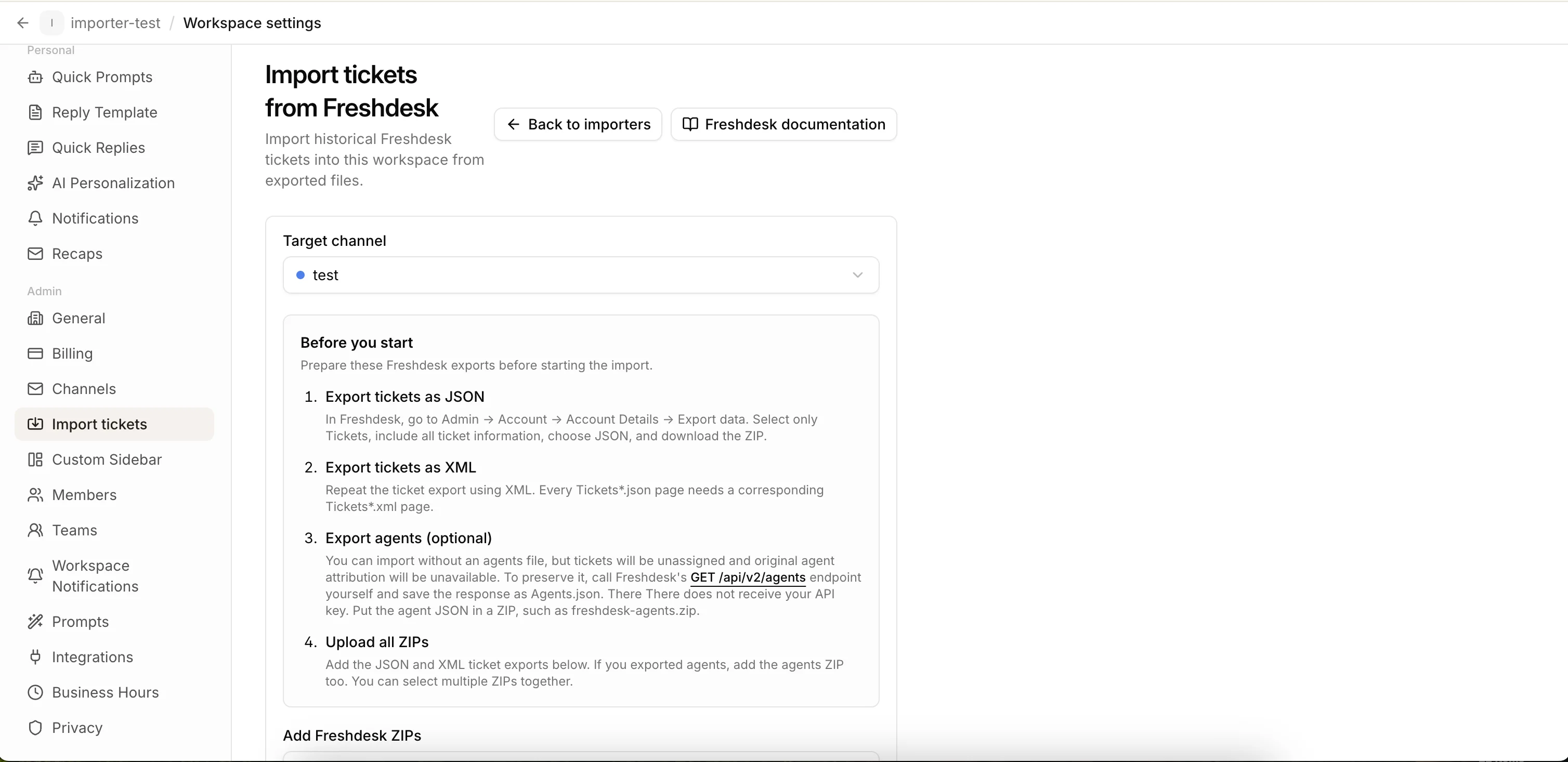
Open your workspace settings, choose Import tickets, select Freshdesk, and continue to the importer.
What gets imported
The importer carries over:
- ticket subjects, requester names, and requester email addresses;
- original creation and closure dates;
- open, pending, resolved, closed, and spam statuses;
- public replies and private notes in chronological order;
- tags and agent assignments;
- regular attachments and inline images.
Contacts are matched by email within the workspace. Importing several tickets from the same requester reuses the existing contact.
Tickets are matched by their Freshdesk ID. Re-running an import skips tickets that were already imported instead of creating duplicates.
Before you start
You need administrator access to the There There workspace and an email channel that will receive the imported tickets. In Freshdesk, you need Account Administrator access to export the account data.
Prepare the Freshdesk ticket export in both JSON and XML. The JSON contains the ticket conversations. The XML provides attachment download URLs that may be missing from the JSON.
You can also export your Freshdesk agents. This file is optional, but it improves agent attribution and assignment.
Export tickets as JSON
In Freshdesk, go to Admin → Account → Account Details → Export data.
Select only Tickets, include all ticket information, choose JSON, and download the ZIP file. Do not extract the ZIP before uploading it to There There.
Export tickets as XML
Repeat the ticket export and choose XML. Every Tickets*.json page needs a corresponding Tickets*.xml page.
Download the XML export as a ZIP and keep it separate from the JSON export. You will upload both ZIP files together.
Export agents (optional)
Freshdesk does not include the complete agent directory in the ticket export. To preserve agent attribution, request the agents through Freshdesk's API:
GET /api/v2/agents?per_page=100&page=1
Freshdesk paginates list responses. Continue with page=2, page=3, and so on until the response no longer includes a link to the next page.
Save each response as Agents1.json, Agents2.json, and so on. Place all agent files in a ZIP such as freshdesk-agents.zip.
There There never receives your Freshdesk API key. You call the Freshdesk endpoint yourself and upload only the resulting agent file.
Without an agents file, tickets are still imported. Messages may remain unlinked to a workspace member, and original assignments may not be restored.
Start the import
Open Workspace settings → Import tickets, select Freshdesk, and continue.
- Select the target email channel.
- Add the JSON and XML ticket export ZIPs.
- Add the optional agents ZIP.
- Optionally enter a ticket limit for a smaller sample import.
- Choose whether every imported ticket should be closed.
- Select Start import.
You can select all ZIP files at once or add them in several selections. The importer automatically finds ticket JSON pages, matching XML pages, and agent files inside the archives.
Only one import can run for a workspace at a time. The form remains unavailable until the active import finishes.
Monitor progress
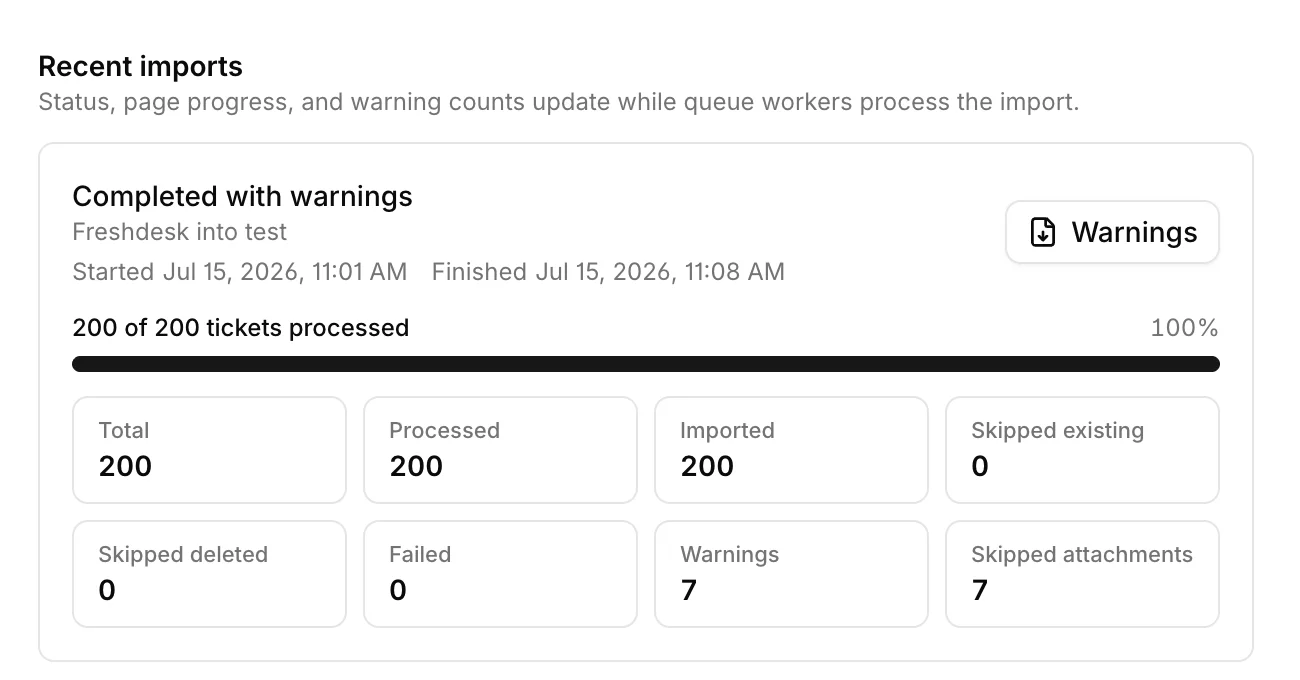
The recent imports section shows the current status, progress, ticket counts, attachment counts, and timestamps.
Without a ticket limit, progress is measured by processed ticket export pages. With a ticket limit, it is measured by processed tickets.
You can leave the page while the import runs. Return to Workspace settings → Import tickets → Freshdesk to check its progress.
Warnings and failed items
An import can complete with warnings when individual tickets or attachments could not be imported. Successful tickets remain available even when another item fails.
The counters show imported, previously imported, deleted, and failed tickets, plus imported and skipped attachments.
When warnings are available, select Warnings to download a CSV. Each row identifies the affected Freshdesk ticket, message, or attachment and explains what happened.
Important behavior and limitations
Agent email addresses must match active workspace members. Matching agents are linked to their member accounts. Other author names and email addresses are preserved on messages without creating workspace members.
Deleted Freshdesk tickets are skipped. Unknown Freshdesk statuses are imported as open and recorded as warnings.
Choose Import all tickets as closed for an archive-only migration. If you preserve Freshdesk statuses, open and pending tickets become active tickets after import and can participate in future helpdesk activity.
Attachment downloads depend on the URLs in the Freshdesk exports. An unavailable or unsupported attachment is skipped and recorded in the import warnings without failing the entire ticket.