From HubSpot
Overview
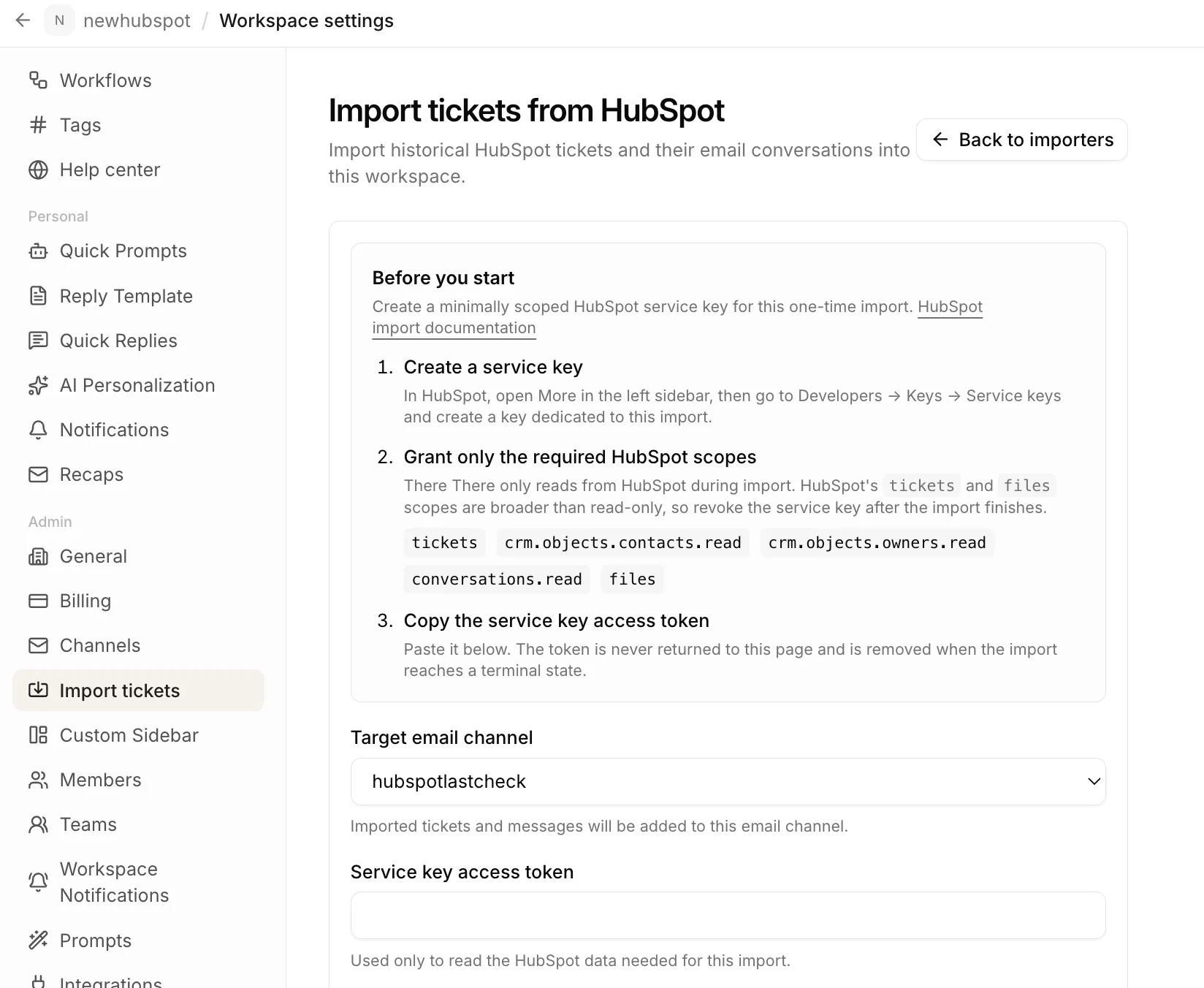
Use the HubSpot importer to move a fixed snapshot of historical support tickets into an email channel in There There. The importer reads directly from HubSpot with a temporary service key token, so you do not need to prepare an export.
The import is silent. It does not email contacts, notify your team, or run workflows. Imported open tickets behave like regular open tickets after the import finishes.
Find the HubSpot importer
The importer is available to workspace administrators when ticket importing is enabled for the workspace.
- Open the workspace into which you want to import the tickets.
- Open Workspace settings.
- Under Admin, choose Import tickets.
- Select HubSpot, then choose Continue.
If Import tickets does not appear, make sure you are a workspace administrator and that ticket importing is enabled for your workspace.
Create a service key
In HubSpot, open More in the left sidebar, then go to Developers → Keys → Service keys and create a key dedicated to this one-time import. Grant only these required HubSpot scopes:
ticketscrm.objects.contacts.readcrm.objects.owners.readconversations.readfiles
Create the service key and copy its access token. Paste the token into the importer; do not add it to your server environment.
There There only reads from HubSpot during import. HubSpot's tickets and files scopes are broader than read-only, so revoke the service key after the import reaches a terminal state.
Before creating an import, There There runs a read-only preflight against every HubSpot capability it needs. If the token is invalid or a capability is unavailable, the form identifies the missing access and no import is started.
Start with a trial import
Select the target email channel for the imported tickets. To inspect the result before migrating everything, enter an optional ticket limit. A limited import uses real HubSpot data and selects the newest eligible tickets first.
Leave the limit blank for the full migration. Only one ticket import can run in a workspace at a time.
Choose Import all tickets as closed for an archive-only migration. Leave it off to preserve HubSpot ticket statuses, which means imported open tickets become active tickets in There There.
When the run starts, There There fixes a cutoff time. The run imports only tickets created on or before that cutoff. If a failed run is resumed, the cutoff stays fixed so new HubSpot activity cannot move that run's migration target.
Both limited and full migrations process tickets newest first.
What gets imported
The importer discovers every active, non-archived HubSpot ticket before the cutoff from every pipeline. Both Open and Closed tickets are included; archived, recycled, and deleted records are not.
Unless you choose to import all tickets as closed, HubSpot OPEN maps to Open and CLOSED maps to Closed. An unknown state maps to Open and creates a warning. When every ticket is forced closed, pipeline status mapping is skipped and unknown states do not create warnings.
For each ticket, There There imports:
- the subject and original creation and closure times;
- the associated contact and owner when they can be matched;
- email-channel conversation messages and private notes in chronological order;
- complete original message bodies when HubSpot reports a truncated body;
- sender details and To, CC, and BCC recipients;
- regular attachments and HubSpot-hosted inline images.
HubSpot Conversations messages are the imported email history. CRM note activities are used as a best-effort fallback for private notes. Separately logged CRM email engagements are not imported. If HubSpot denies access to CRM notes, the importer skips that fallback and records a warning instead of blocking the import. Non-email conversation messages are skipped silently.
Contacts are matched by email inside the workspace. Existing contact names are preserved; HubSpot fills only blank names. When several contacts are associated, the importer uses the contact matching the earliest inbound sender when possible. Additional HubSpot email addresses help with matching but do not create duplicate contacts.
When HubSpot provides no usable customer email, the ticket is associated with the administrator who started the import instead of being skipped. The importer preserves the ticket's HubSpot status and adds a private note explaining the fallback. Replace the ticket contact before replying to the customer.
Deleted HubSpot owners are omitted without creating a warning. Tickets without an available owner are imported without an assignee, and messages keep any available author name without an owner email.
Attachments and inline images
Attachments must pass There There's normal file safety checks and may be at most 10 MiB each. Files that are unavailable, unsafe, unsupported, or over the limit are skipped with a warning without failing the ticket.
HubSpot-hosted inline images are copied into There There and message HTML is rewritten to use private local URLs. Unrelated third-party image URLs are not downloaded and remain subject to normal message sanitization.
Warning reference
The warnings CSV includes a code that identifies what happened:
| Code | Meaning and import outcome |
|---|---|
hubspot_ambiguous_contacts |
Several associated contacts were valid candidates. The importer selected one deterministically and imported the ticket. |
hubspot_unknown_ticket_state |
HubSpot did not provide a recognized OPEN or CLOSED pipeline state. The ticket was imported as Open. |
hubspot_crm_note_fallback_failed |
HubSpot rejected the optional CRM note activity request. Other available history was still imported. |
hubspot_attachment_invalid |
An attachment reference had no usable HubSpot file identifier. That attachment was skipped. |
hubspot_attachment_rejected |
The attachment exceeded the size limit or failed file safety checks. That attachment was skipped. |
hubspot_attachment_download_failed |
HubSpot metadata or file download access failed. That attachment was skipped. |
hubspot_ticket_import_failed |
The individual ticket could not be mapped or stored. The CSV exports this row with level set to failed, and the remaining import continues. |
Monitor, cancel, and resume
The recent imports section shows progress, counters, warnings, and any HubSpot rate-limit wait. When HubSpot asks the importer to slow down, the run remains Processing, displays the next retry time, and continues automatically.
One ticket or attachment can fail without undoing successfully imported records. Download the warnings CSV to see which HubSpot ticket, message, or attachment was affected. Retrying or resuming is idempotent: committed tickets are not duplicated.
You can cancel an active run. Work that was already committed, including imported tickets and the run ledger, remains available, and queued work stops safely. Cancelled imports cannot be resumed. To continue after cancellation, start a new import; the new run gets a new cutoff and may include newer tickets.
Only failed imports can resume the same cutoff and snapshot. Resume asks for a replacement service key token, repeats preflight, and continues from the failed run's durable checkpoint without duplicating committed tickets.
The access token is encrypted only while an active run needs it. There There never shows it again and purges it when the run completes, fails, or is cancelled. After the migration reaches a terminal state, revoke the service key in HubSpot.