Custom Sidebar Sections
Overview
Custom sidebar sections let you display data from external systems directly in the ticket sidebar. When an agent opens a ticket, There There calls your HTTP endpoint with the customer's email address, the ticket number and subject, and the ticket's custom fields. The response is rendered as a collapsible section below the ticket details.
This is useful for showing contextual information from your own systems: subscription details from your billing platform, recent orders from your e-commerce backend, or account status from your CRM.
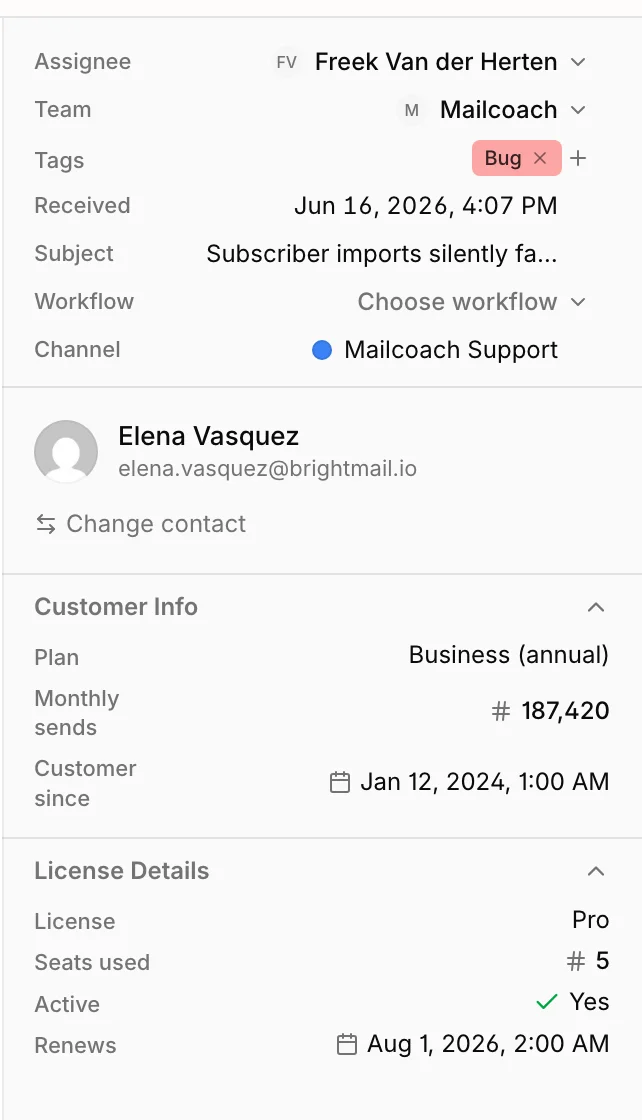
The screenshot below shows the ticket sidebar with two custom sections. The standard ticket details and contact appear at the top, while "Customer Info" and "License Details" are the custom sections, each populated from its own endpoint.
Creating a custom sidebar section
Go to Settings > Custom Sidebar and click to add a new section.
- Title: The heading shown in the ticket sidebar (e.g., "Billing Info", "Account Details").
- Endpoint URL: The URL of your HTTP endpoint that returns the data.
- Secret: A shared secret used to sign requests so your endpoint can verify they come from There There. A strong key is generated automatically, but you can set your own (minimum 8 characters).
- Channels: Select which channels this section appears in. A section only shows up on tickets from its assigned channels.
How it works
When an agent opens a ticket, There There sends a POST request to your endpoint:
POST https://your-endpoint.example.com
Content-Type: application/json

{
  "email": "customer@example.com",
  "ticket_number": 1234,
  "subject": "Where is my order?",
  "custom_fields": [
    { "ulid": "01jw...", "name": "Order number", "type": "text", "value": "10023" },
    { "ulid": "01jx...", "name": "Refund requested", "type": "single_select", "value": null }
  ]
}
ticket_number is the number the ticket carries in There There, the one agents see as #1234. It counts up per workspace, so it is unique within your workspace but not globally.
subject is the line agents read at the top of the ticket. That is the subject of the first email, unless somebody gave the ticket its own title, in which case it is that title.
Ignore any key you do not need. We may add more of them over time, so your endpoint should not reject a body that contains keys it does not recognise.
Every request includes an X-There-There-Signature header containing an HMAC-SHA256 hash of the request body, signed with your shared secret. Use this to verify the request is genuine.
Ticket custom fields
custom_fields holds every ticket custom field that applies to the ticket's channel, in the order they are arranged in settings. Fields nobody filled in are included with a value of null, so you can tell an empty field apart from one that does not exist.
Match on ulid rather than on name if you can. The ulid never changes, while the name does the moment somebody renames the field in settings.
value is always a string or null. For a single select it is the name of the chosen option, and for a multi select it is the chosen option names joined with a comma and a space.
This is useful when your endpoint needs more than an email address to answer. An order lookup that only returns data for an order number and an email address together can read the order number out of a ticket custom field.
A caveat worth knowing: the sidebar calls your endpoint when the agent opens the ticket. A custom field that is still empty at that moment is sent as null. Filling the field in afterwards does not call your endpoint again until the ticket is opened again.
Your endpoint should respond with a JSON object containing a data array:
{
    "data": [
        { "name": "Plan", "value": "Pro", "type": "markdown" },
        { "name": "MRR", "value": 49.99, "type": "numeric" },
        { "name": "Member since", "value": "2025-06-15T00:00:00Z", "type": "date" },
        { "name": "Active", "value": true, "type": "boolean" },
        {
            "name": "Dashboard",
            "value": "https://app.example.com/users/123",
            "type": "url",
            "label": "Open dashboard"
        }
    ]
}
Data types
Each item in the data array has a name, value, and type. The type controls how the value is displayed:
- markdown: Text, with support for basic markdown (links, bold, italic).
- numeric: A number, formatted with locale-appropriate separators.
- date: An ISO 8601 datetime string, displayed as a formatted date.
- boolean: A true/false value, shown as a checkmark or X icon.
- url: A clickable link that opens in a new tab. Long URLs are shortened in the middle. Add an optional
labelto show your own link text instead of the URL.
Testing
Before enabling a section in production, use the Test button in the settings page. This sends a test request to your endpoint with test@example.com as the email, along with one sample custom field, and shows you the raw HTTP response. The test body has the same shape as a real one, so an endpoint that passes the test will accept what we send on a real ticket.
Caching
Responses are cached for 5 minutes per section, keyed on the request body. If the same agent opens the same ticket again within that window, There There serves the cached data instead of calling your endpoint again. Changing a ticket custom field changes the body, so the next open calls your endpoint rather than reusing the cached answer.
Error handling and auto-disable
If your endpoint fails (returns an error or times out), There There tracks consecutive failures. After 10 consecutive failures, the section is automatically disabled and the workspace owner receives an email notification.
You can re-enable a disabled section from the settings page. Re-enabling resets the failure counter.
Requests have a 2-second connection timeout and an 8-second total timeout to prevent slow endpoints from blocking the ticket view.
Verifying request signatures
To verify that a request genuinely comes from There There, compute the HMAC-SHA256 hash of the raw request body using your shared secret, and compare it to the X-There-There-Signature header.
$signature = hash_hmac('sha256', $request->getContent(), $secret);
$valid = hash_equals($signature, $request->header('X-There-There-Signature'));